
What it's for
Central Usage is the app for musicians and singers. It shows your chord chart or your instrument's part and the lyrics, plays your instrument through the rig, and lets you set your own in-ear mix.
It gets everything from the main admin's computer, the hub, over the church Wi-Fi. It follows the song and the section the pedal is playing, so you never turn a page or change songs yourself. The music does it for you.
Central Usage only has the user side. A device running it can't become an admin, and the main admin can see on their Devices tab which devices are running it.
Your key and your devices
Central Usage needs a U key, which is a user key. Each one works on two devices signed in with the same account, for example an iPad at church and your phone at home, and your settings follow you between them. It includes ten releases of updates, and $20 renews it for ten more. If you don't renew, it keeps working.
Your main admin adds you on the website's Teams page. You'll get an email with a link to make your account, the download link and your key.
The starter pianos, synths and pedals are free. The sound plans add more, and each one comes as a package key, either bought yourself or given to you by your church. To add one, go to Settings → Packages & key → Add a package and paste it. A package key works on three of your devices at once as long as each is a different app, for example this Central Usage, your Central Control and your Central Pedal.
| Device | How to get it |
|---|---|
| Windows, Mac, Linux | Download the app from the install page. |
| Android phones and tablets | Download the .apk from the same page (Android 6 or newer). |
| iPhone and iPad | Open it in Safari from the hub, with nothing to install. An App Store app is on the way. |
First-time setup
You'll need your U key from the email and the pairing PIN from your main admin. It takes about five minutes.
- Install the app. On an iPhone or iPad, follow the Safari steps below instead.
- Sign in with your own account and type your U key, the 16 letters and numbers from your email.
- Join the church Wi-Fi, the same network as the main admin's computer.
- Wait for the app to find the hub. If your network hides it, type the hub's address. Your main admin can find it in Central Control under Settings → This computer & devices.
- Pick User 1 or User 2 and type the pairing PIN.
iPhone and iPad, in Safari
- Join the same Wi-Fi as the main admin's computer.
- In Safari, open
http://<main admin's address>:8095/cu/. If you have a Central Pedal,http://padpedal.local:8080/cu/works too. - Choose User 1 or User 2 and type the pairing PIN.
- Press Share → Add to Home Screen. Now it opens full screen like an app, and it always runs the same version as the hub.
User 1 and User 2
User 1 is for most players. It has Chord chart, Instrument, Studio (on a computer), Lyrics, In-ears, I/O and Controls.
User 2 is for singers or a second screen on a stand. It has Lyrics, Chord chart for any instrument, and In-ears.
You can switch between them any time with the buttons in the top bar.
Chord chart and parts
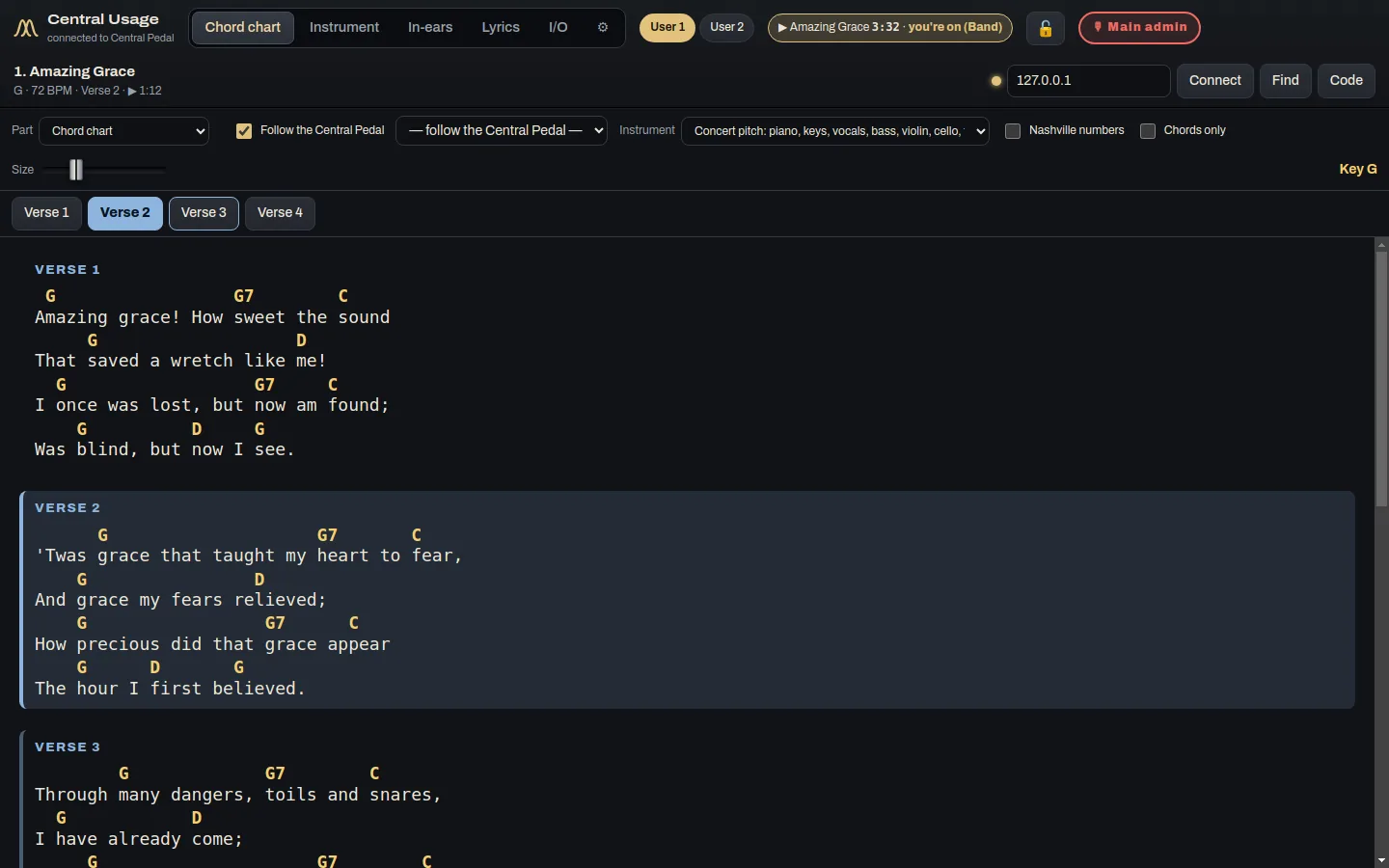
First pick how you like to read: a chord chart, a number chart (Nashville numbers), sheet music or just the words. Then pick your instrument, so it's written in your key (concert pitch, B♭, E♭ or F) and your clef (treble, bass, alto or tenor), with a capo if you play guitar. Your device remembers what you chose.
If the leader changes the key or tempo, or moves a section around, your chart changes with it.
Press Part, next to the instrument, to see your instrument's part instead of the chart. Guitar gets the chart with a capo and a diagram for each chord shape, or tab. Bass gets notation or tab, keys get both hands, and vocals get the melody with the words under the notes. There are parts for trumpet, clarinet, alto and tenor sax, horn in F and trombone, each in its own key, plus violin, cello and a drum chart.
If the pedal has listened to the song's tracks, your part is what that track actually plays. If not, it's written from the chords. Either way it follows the key the pedal is playing in.
Lyrics
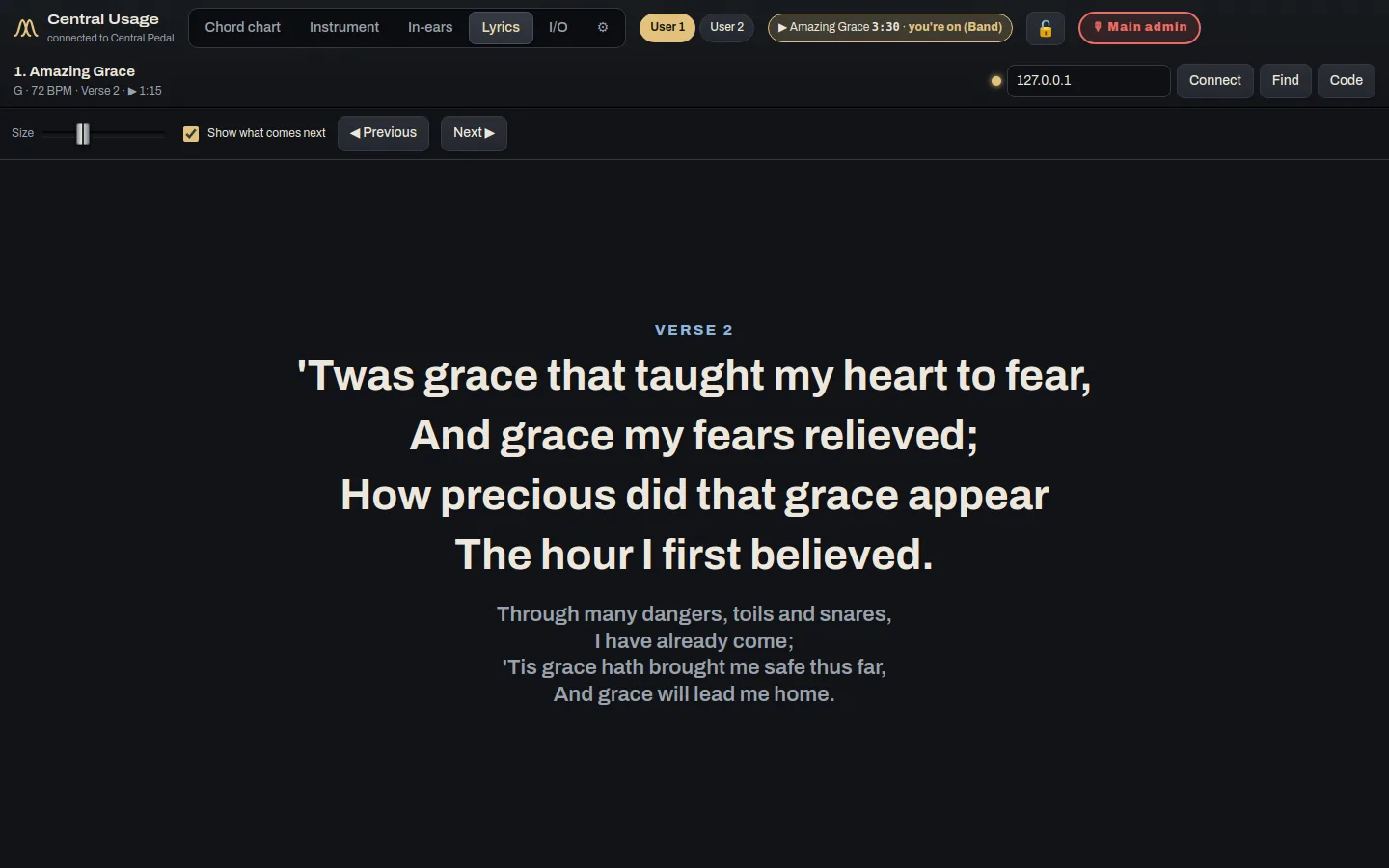
The lyrics are big, with what's coming next underneath, and they follow the pedal section by section.
Your in-ear mix
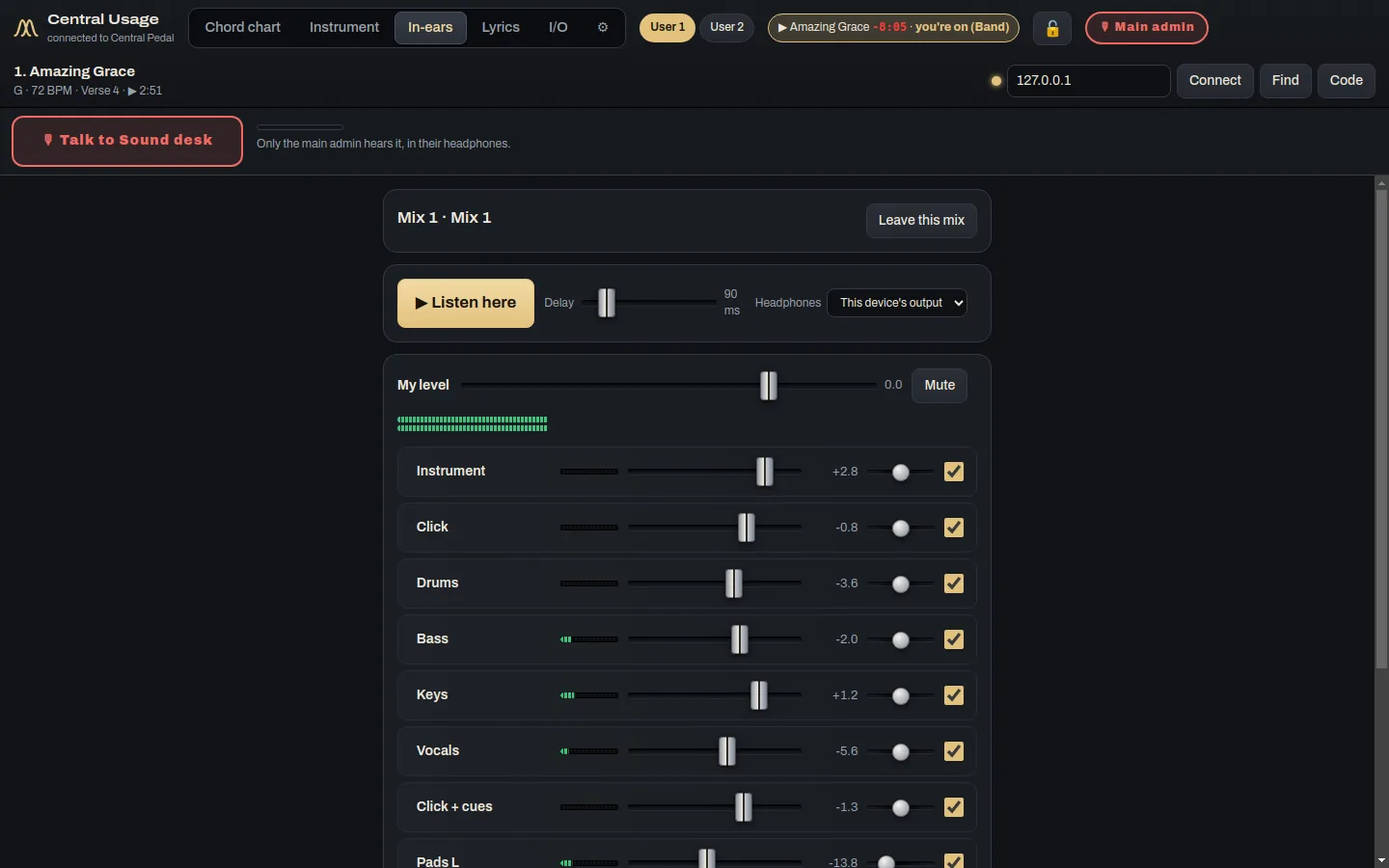
- Pick a free mix. Your levels stay with it.
- Set your levels for the channels the sound desk sent you. More click, less keys, more of yourself, whatever you need.
- Choose where you hear it. Local plays it on this device's headphones and gives you a delay slider. Cloud asks the sound desk to send it to your wired in-ear pack.
You can only change your own mix. Leave this mix frees it up for someone else. If it says your mix doesn't go anywhere yet, ask the sound desk to send it to your pack or to this device.
Hold 🎙 TALK to talk to the sound desk. Only the desk's headphones hear you, never anyone's in-ears. When the main admin talks to the band, you'll see who's talking and the music in your ears goes down.
Instrument
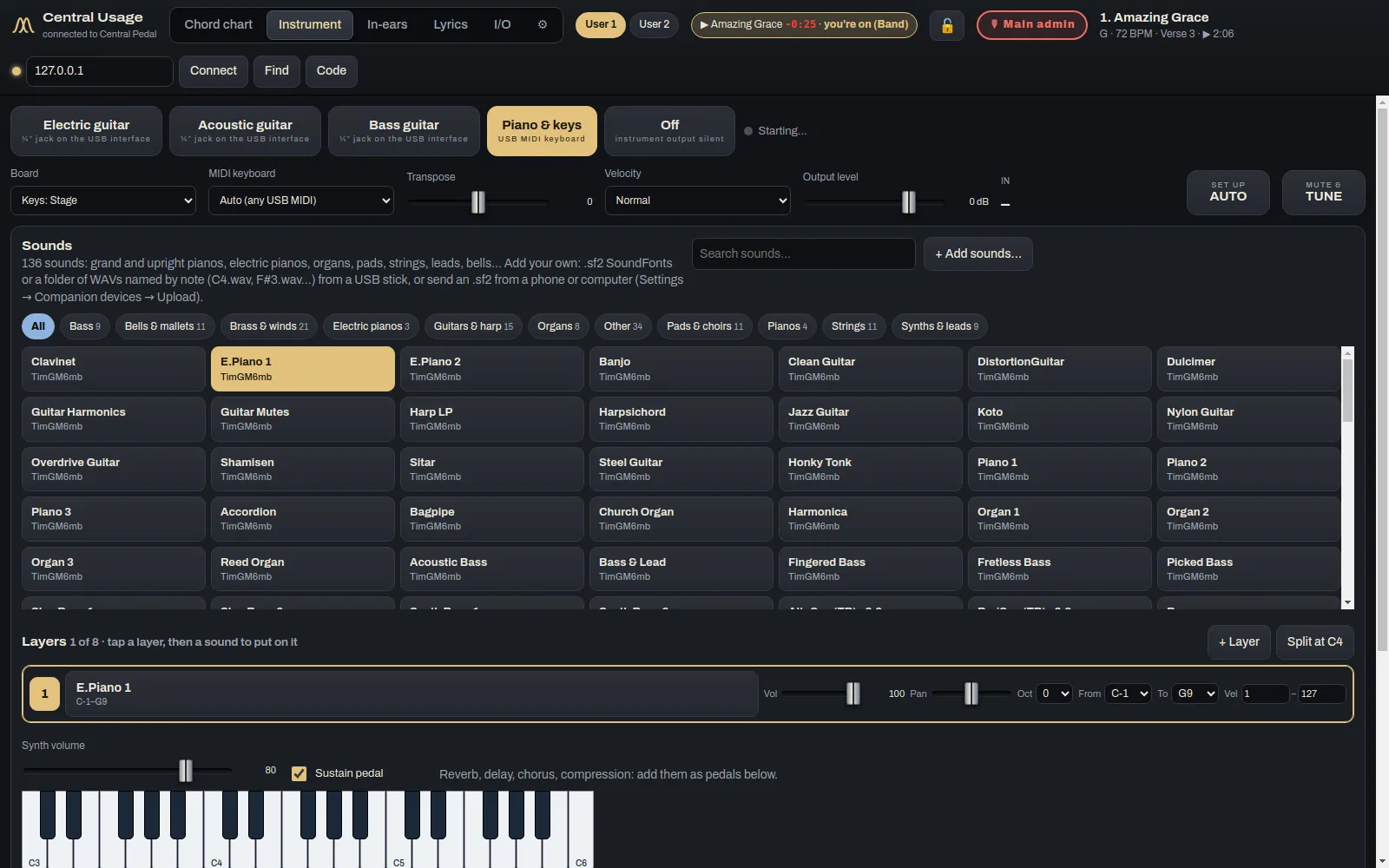
On a computer, as User 1, Central Usage can be your rig. Plug your guitar into an audio interface or a keyboard into USB and you get the pedalboard and its presets, keys sounds with up to eight layers and splits, the tuner, an IR loader and a looper.
Your own plugins sit alongside the built-in pedals: VST3 and CLAP on Windows, Mac and Linux, Audio Units on the Mac and LV2 on Linux. Use Add pedal → Your plugins for effects and Piano & keys → Your instruments for things like Kontakt, Keyscape and Pianoteq.
Studio
On a computer, the Studio tab is somewhere to write and record parts, a bit like a small Logic or Ableton. It's free with Central Usage.
You can use up to four MIDI devices at once, such as a keyboard, drum pads, a Launchpad or a loop controller. Each one plays whichever track you pick, and a Launchpad lights up with the clips. With nothing plugged in, your computer keys play notes.
There are instrument tracks (with up to four sounds, layered or split by key or by how hard you play), drum tracks, and audio tracks that record your input in time with the click. You can work in a grid of clips and scenes that start on the next bar, or on a timeline where you drag, stretch and loop clips. There's a piano roll, a drum step editor, quantize, transpose, and undo and redo.
Each track has volume, pan, mute, solo and a meter, with a gate, EQ, compressor, reverb and delay. You can export the whole mix or one WAV per track. Projects are saved on your computer.
Five sounds come free, and the Studio can use any sound bank on your computer. The plan sounds and the better effects come with the same sound plans as everywhere else, and until you have one a free sound stands in.
What you play live has very little delay, but you hear it without its effects. You hear the effects when it plays back. If you'd rather hear them live, set the track to play live through its effects, which adds a little delay.
Controls and colours
On a computer, the Controls tab lets a MIDI footswitch, a controller, a Stream Deck or a computer key do things for you, like next section, your in-ear level, the tuner or a pedal on your board. Press Add new control, pick Button, Knob or Slider and name it. Then press it once, or turn or slide it from one end to the other, and give it a job.
Settings → Look changes the colours of everything. Pick one of the ready-made looks or set your own, and Back to our colours undoes it all.
Troubleshooting
- It can't find the main admin. Check you're on the church Wi-Fi and not mobile data or a guest network, and that Central Control is open on the hub. If your network hides it, type the hub's address.
- It says "This key is now used on another device." A U key works on two devices. Release one under Settings → Packages & key → Release key, or from My products on the website.
- Your chart doesn't move. It follows the track player. If nothing's playing, it stays on the song that's loaded.
- Your in-ears lag behind. Listening over Wi-Fi has a little delay. Move the delay slider, or ask the sound desk for a wired pack.
- You forgot your password. Press Forgot password? on the sign-in screen.
- Still stuck? Write to us through Contact support, or ask your main admin, who can see your device on their Devices tab.